Video at MMS 2009
Last year at MMS I had a touch with fame when Bill Anderson used a video (during the “State of the Nation” address) of me and my five year old daughter doing Operating System Deployment with ConfigMgr. It was shocking to me how much face recognition that video gave me last year.
Well…I am presenting at MMS this year on “Operating System Deployment in the Real World." If you are at MMS, that session is Wednesday at 2:15 in Bellini 2001B. During that session I will be debuting a follow up video to the one shown last year. If you want to see it, don’t be late. I will also be posting the video here after the session.
Update on KB955955 Error
A few weeks ago I posted about a problem I was having with the KB955955 update for ConfigMgr. I was having an issue with the update failing to apply, and I posted another way of applying the update that was supposed to work. (I was clear to point out that I had not tested it…I was relying on another post.)
Well…two problems. First…I read the documentation wrong…which is why I was getting the error. Second…if you use the method that I mentioned in the original post…your SUP won’t patch the system during the Build and Capture task sequence. So…ignore my original post.
The mistake I made in reading the documentation was regarding the installation properties…specifically which Package ID to replace in the following string:
PATCH="C:\_SMSTaskSequence\OSD\<Package_ID>\i386\hotfix\KB955955\SCCM2007AC-SP1-KB955955-x86.msp"
I goofed and put the Package ID of the ConfigMgr package that the KB955955 patch creates in the console. That should have been the Package ID of the ConfigMgr client installation package…which is clearly stated in the documentation.
Once I put the correct Package ID in the string and retested…not only does the patch apply…the SUP doesn’t break!
Domain Join Account – Minimum Rights
This falls under another one of those items that I have had in my private notes for a while, but can’t remember where I found it. When setting up the account in a ConfigMgr Task Sequence to join the new computer account to the domain, you must give that account rights in order for it to work. It is essentially a service account, so it should only be given the bare minimum rights. What are those rights? You can “Delegate Control” on the OU to the account and only give it “Allow” for the following:
| Permission | Apply To |
| Reset Password | Computer Objects |
| Validated write to DNS host name | Computer Objects |
| Validated write to service principal name | Computer Objects |
| Read/Write Account Restrictions | Computer Objects |
| Create/Delete Computer Objects | This object and all descendant objects |
Hopefully this will help others…and it will make it easier for me to quickly locate the next time I need to set it!
KB955955 Error
Update: I discovered that I made a mistake in the post below. Refer to this post instead. In particular, the possible solution I mention at the bottom of this post broke the ability of my Software Update Point to apply patches during the Build and Capture task sequence.
In my ConfigMgr virtual environment on my laptop I was implementing the KB955955 update today (this fixes an issue where there is a 90 second delay between installation of software packages in a task sequence). I used the instructions from the ReadMe.docx file that was part of the patch to modify the “Setup Windows and ConfigMgr” task in my task sequence. Essentially it says to put the following in the Installation Properties box of that step:
PATCH="C:\_SMSTaskSequence\OSD\<Package_ID>\i386\hotfix\KB955955\SCCM2007AC-SP1-KB955955-x86.msp"
Once I did that, I ran a task sequence to test something else, but the task sequence bombed out before finishing. Once I checked the advertisement log, I could see that it failed on the “Setup Windows and ConfigMgr” task. I logged into the client machine that failed the Task Sequence, and looked for the log file for that failure. That log file is located at: “C:\Windows\System32\ccmsetup\LastError\client.msi.log”. Here is what that log file said (it’s a little long, but perhaps it will help someone else who is searching on this…
=== Verbose logging started: Build type: SHIP UNICODE 4.00.6001.00 Calling process: C:\_SMSTaskSequence\OSD\SMS00006\ccmsetup.exe ===
Resetting cached policy values
Machine policy value ‘Debug’ is 0
******* RunEngine:
******* Product: C:\Windows\system32\ccmsetup\{35BE0386-E1B9-4F59-8DBD-E5B390AA8A09}\client.msi
******* Action:
******* CommandLine: **********
Client-side and UI is none or basic: Running entire install on the server.
Grabbed execution mutex.
Cloaking enabled.
Attempting to enable all disabled privileges before calling Install on Server
Incrementing counter to disable shutdown. Counter after increment: 0
Grabbed execution mutex.
Resetting cached policy values
Machine policy value ‘Debug’ is 0
******* RunEngine:
******* Product: C:\Windows\system32\ccmsetup\{35BE0386-E1B9-4F59-8DBD-E5B390AA8A09}\client.msi
******* Action:
******* CommandLine: **********
Machine policy value ‘DisableUserInstalls’ is 0
Setting cached product context: machine assigned for product: B3CBA12721F52334C9C01C4142FE66C6
Using cached product context: machine assigned for product: B3CBA12721F52334C9C01C4142FE66C6
SRSetRestorePoint skipped for this transaction.
Note: 1: 1402 2: HKEY_CURRENT_USER\Software\Microsoft\Windows\CurrentVersion\Policies\Explorer 3: 2
File will have security applied from OpCode.
SOFTWARE RESTRICTION POLICY: Verifying package –> ‘C:\Windows\system32\ccmsetup\{35BE0386-E1B9-4F59-8DBD-E5B390AA8A09}\client.msi’ against software restriction policy
SOFTWARE RESTRICTION POLICY: C:\Windows\system32\ccmsetup\{35BE0386-E1B9-4F59-8DBD-E5B390AA8A09}\client.msi has a digital signature
SOFTWARE RESTRICTION POLICY: C:\Windows\system32\ccmsetup\{35BE0386-E1B9-4F59-8DBD-E5B390AA8A09}\client.msi is permitted to run because the user token authorizes execution (system or service token).
End dialog not enabled
Original package ==> C:\Windows\system32\ccmsetup\{35BE0386-E1B9-4F59-8DBD-E5B390AA8A09}\client.msi
Package we’re running from ==> C:\Windows\Installer\7bac5.msi
APPCOMPAT: looking for appcompat database entry with ProductCode ‘{CE6A85D8-D6B9-479A-9FE9-A06E56881E61}’.
APPCOMPAT: no matching ProductCode found in database.
Machine policy value ‘TransformsSecure’ is 0
User policy value ‘TransformsAtSource’ is 0
Note: 1: 2262 2: MsiFileHash 3: -2147287038
Unable to create a temp copy of patch ‘C:\_SMSTaskSequence\OSD\SMS00013\i386\hotfix\KB955955\SCCM2007AC-SP1-KB955955-x86.msp’.
Note: 1: 1708
Product: Configuration Manager Client — Installation failed.Windows Installer installed the product. Product Name: Configuration Manager Client. Product Version: 4.00.6221.1000. Product Language: 1033. Installation success or error status: 1635.
MainEngineThread is returning 1635
No System Restore sequence number for this installation.
This update package could not be opened. Verify that the update package exists and that you can access it, or contact the application vendor to verify that this is a valid Windows Installer update package.
C:\Windows\system32\ccmsetup\{35BE0386-E1B9-4F59-8DBD-E5B390AA8A09}\client.msi
Decrementing counter to disable shutdown. If counter >= 0, shutdown will be denied. Counter after decrement: -1
MainEngineThread is returning 1635
=== Verbose logging stopped:
Okay…there’s a problem installing the patch. I came across multiple references to a blog post that no longer exists (http://blogs.technet.com/smsandmom/archive/2008/09/24/configmgr-2007-how-to-automatically-apply-a-client-hotfix-as-part-of-a-client-push-or-client-installation.aspx). I finally located the information elsewhere that states that to apply a patch like this during a task sequence, you need to follow a different process. Here are the basic steps condensed from the original post. (Thanks to Rod for the copy of the post.)
- Create a folder called “ClientPatch” under the Client folder in the ConfigMgr install directory. (e.g. d:\configmgr\client\ClientPatch)
- Copy the MSP file from the patch to that location. In this instance, the patch is located at d:\configmgr\Client\i386\hotfix\KB955955. (assuming that d:\configmgr is the installation directory)
- Update the DP for the ConfigMgr client package.
All installations should now use that patch as part of the installation. I haven’t actually tested this fully on my VM yet, but I will update this post if it does not work as indicated.
User State Migration Tool Error Codes
I came across this page recently that I found very helpful. It is a list of all of the possible error codes that the User State Migration Tool can produce. This can be very helpful in troubleshooting a USMT issue.
USMT Error Codes on the Deployment Guys blog.
No Assigned Task Sequence
I’ve been setting up a virtual ConfigMgr environment on my laptop to use both for demonstrating at client locations as well as to use for the demo portions of my presentations at MMS and TechEd. It’s running inside Virtual PC 2007, and the server VM is running Windows Server 2008 and ConfigMgr 2007 SP1 R2. It actually runs pretty peppy…I do have the VM running on an external 7200 RPM hard drive connected to my laptop via an eSATA cable.
Anyway…I set up a Task Sequence to do my OS build and capture. It worked fine. Then I imported that WIM file and set up another Task Sequence to deploy that image. It was advertised to both the “All Unknown Computers” collection as well as a special OSD Deploy collection that I had created and imported the name and MAC address of the new VM into.
After booting the new VM with the Bootable Task Sequence media CD, it kept giving me this error message: “Failed to Run Task Sequence” “There are no task sequences available for this computer.” If I looked in the smsts.log file located at “X:\windows\temp\smsts”, I saw an error entry stating: “No assigned task sequence.” Looking through the log file, I could see that it was reading the correct MAC address and had the right SMS GUID that was assigned to the system that I imported. So it was clearly recognizing the machine. It was talking to ConfigMgr correctly. It was downloading policy, but it was determining that none of those policies were applicable. If I looked at the properties of either the Collection or the system, it showed that the advertisement for the Task Sequence was applicable to that computer. So…why would it show as applicable in the GUI, but not be evaluated as applicable during the task sequence?
After beating on this for entirely too long, I finally figured it out this afternoon. I had done a housekeeping task on my VM to move all of the default “All…” collections off of the root of the Collections node (see this post). After doing so, I had forgotten to update those collections after “moving” them. Shouldn’t matter…except that the “All Unknown Computers” collection was completely empty…including not having the “x86 Unknown Computer (x86 Unknown Computer)” or “x64 Unknown Computer (x64 Unknown Computer)” entries.
When the new VM was evaluating policy, it went through the following steps in the SMSTS.log.
Client Identity: GUID:24e41bb6-2d68-451a-9802-29f9f1bdd1ea
Netbios name: NewComputer
Client GUID = GUID:24e41bb6-2d68-451a-9802-29f9f1bdd1ea, Netbios name = NewComputer, State = Unknown
Client is unprovisioned
Using unknown machine GUID: 1b554c94-8eeb-490a-8b10-ae10bd579d3d
Unknown client identity: GUID:24e41bb6-2d68-451a-9802-29f9f1bdd1ea
Preparing Policy Assignment Request.
Setting transport.
Setting site code = CM1.
Setting client ID = 1b554c94-8eeb-490a-8b10-ae10bd579d3d.
Executing Policy Assignment Request.
Note what happens to the GUID. It starts off with the GUID that starts with “24e41…” and a state of “Unknown”. It then switches the GUID that it is going to use for the rest of the process to the “unknown machine GUID” which on my system starts with “1b554…”…this is the GUID for the “x86 Unknown Computer (x86 Unknown Computer)” resource that should be in the “All Unknown Computers” collection. After switching the GUID, you see the last line that I pasted in above where it is “Executing Policy Assignment Request.”
Because I had not updated the collection…and the “x86 Unknown Computer (x86 Unknown Computer)” resource didn’t exist in any collection…there wasn’t any advertisement that was applicable to that GUID. It behaved exactly like it should have. It just took me a long long time to figure out why it was failing. Once I updated the collection, the “problem” went away.
In this instance, it was definitely a PEBKAC issue…Problem Exists Between Keyboard And Chair.
How to Move Collections in ConfigMgr
One of the little aspects of working in the ConfigMgr console that I don’t like is the number of builtin collections that are all at the top level of the collections node (“All Systems”, etc). I don’t like that they take up so much room at the top of the list (since they all start with the word “all”) and causes me to need to scroll/search in order to find the collections that I have created. I would prefer to have them in a folder (which doesn’t exist in the Collections area because of the way security works in collections). You will also note when right-clicking a collection, that there is not a “move” option. So…how do you do it?
While you can’t create a true folder, you can use subcollections. Start off by creating a new empty collection named “Z_All Builtin Collections” at the root of the Collections node. After it is created, right click this “Z_All…” collection and choose New, then “Link to collection”. In the dialog that pops up (screen shot below), choose the topmost “All” collection which is probably “All Active Directory Security Groups”, then click OK. 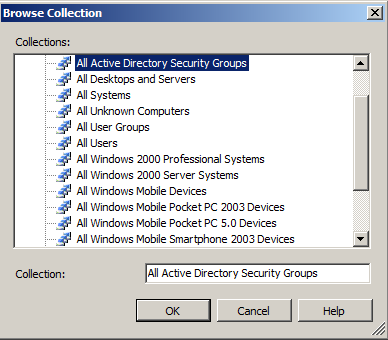 Repeat this process for all of the builtin collections. Make sure you don’t skip any of them. Once you do that, you will have the original collection at the root level and a link to that collection underneath the “Z_All Builtin Collections” collection. This link is an identical replica of the original…even down to the Collection ID.
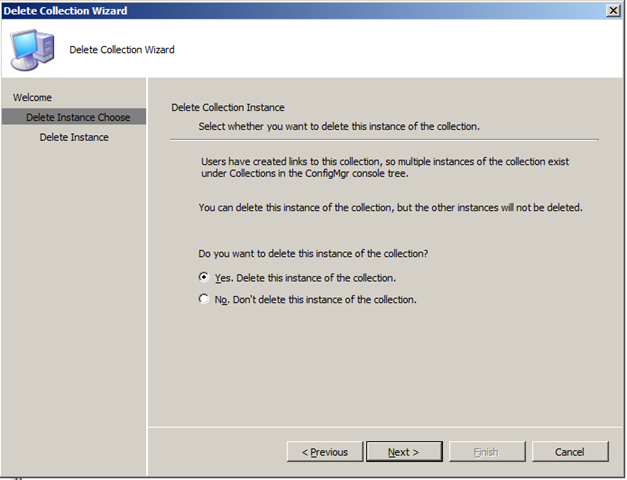
Now…go back to the original ones, right click it and choose “Delete”. This will bring up the “Delete Collection Wizard”. Click next, then note that this is a dialog for deleting an “instance” of the collection. You can delete the original instance while leaving the one that you created in the “Z_All…” collection intact. Repeat for all of the original ones.
After doing this, you will have a Collection node that looks something like this:
 Now that you have done this, be sure to update all of these collections…you could run into problems if you don’t. More on that in my next post.
ConfigMgr Version Numbers
This post is out of date. A more complete listing of both site server version numbers as well as client version numbers can be found in this new blog post.
I have been installing ConfigMgr in a virtual environment on my laptop this week. This will serve as both a Demo environment for my MMS/TechEd presentations as well as a “Proof of Concept” environment when I am talking with clients.
I was wanting to check which version of ConfigMgr I had installed but wasn’t able to quickly locate the version numbers for each version, so I figured I’d post this out to help others.
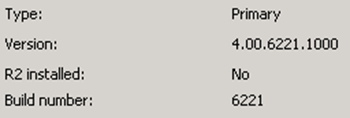
Go to ConfigMgr Console / Site Database / Site Management, then right click your site and choose Properties. The version will be listed on the properties screen.
| ConfigMgr RTM | 4.00.5931.0000 |
| ConfigMgr SP1 | 4.00.6221.1000 The “R2 installed” field will state “No”. (See the screenshot below.) |
| ConfigMgr R2 | 4.00.6221.1000 The “R2 installed” field will state “Yes”. |
| ConfigMgr R2 SP2 (RC) | 4.00.6468.2001 |
| ConfigMgr R2 SP2 (RTM) | 4.00.6487.2000 |
Death By Slidedeck
Over the last couple of days, we have been starting going through a Desktop Deployment Planning Service (DDPS) at a client. A DDPS is essentially a planning service that helps a company understand the tools, best practices and processes for everything in the arena of desktop deployment…operating system image creation/deployment, application deployment/packaging, patching, user state migration, security, Office config/deployment, etc.
The first three days of a DDPS are going through a series of PowerPoint slidedecks looking at all of those issues, discovering what is true of the client’s current environment and processes, helping them determine where in the IO Model they would like to end up, and then mapping out a plan for getting them there. There are a lot of slidedecks. A lot of long slidedecks. Over the last two days I talked through eleven and a half hours of slidedecks. I’m beat. I have rarely been so ready to see a weekend.
Presenting at MMS 2009
This morning I got an email from Martin Dey (Microsoft) confirming that my session proposal for MMS 2009 has been accepted! I will be presenting at the Microsoft Management Summit in Las Vegas! My session is titled “Operating System Deployment in the Real World”.
I’ll admit…there is certainly a combination of excitement and terror going through my head at this point. Looking forward to it…but I’m also aware that there is going to be a lot of work between now and April 27 to prepare for the session.
See you in Vegas!
Acronym Soup
Last week I attended a two day DOVO training (Desktop Optimization using Windows Vista and 2007 Microsoft Office System) at the Microsoft office in Chicago. This was the first time that this training was offered in the US, and it was taught by Steve Campbell from Microsoft. A blurb about DOVO is:
DOVO is a service offering designed by Microsoft Consulting Services (MCS) that was developed around industry best practices for desktop automation. DOVO guidance helps partners automate large scale desktop deployments, accelerate and streamline adoption, simplify desktop management, and help reduce system complexity.
DOVO leverages Microsoft tools and technologies for deploying the desktop. Based on the Microsoft Deployment Solution Accelerator, it is designed to fully capture the benefits of desktop optimization by helping reduce total cost of ownership, improve user productivity, and increase agility.
Anyway…during the training, we kept a running list of acronyms and tools on the white board. It got to be comically long. Here is the list. How many can you interpret? If you think you know them all, leave a comment with what they stand for. I’m curious if anyone can get all of them. There are a couple of obscure ones.
SA
MAP
ACT
UIA
SMS
MDT/BDD
SCCM
MDOP
AIS
OCT
IO
WINPE
LTI
ZTI
ZTP
UAC
GPMC
SMP
WDS
RIS
HTA
DDPS
ADRAP
SOW
DOVO
OMPM
MOF
MSF
ADDS
WAIK
SCOM
WIM
POC
DART
MAK / KMS
Gimagex
SQL
Searching the ConfigMgr Documentation
I have often been frustrated with the online ConfigMgr documentation library. It is simply not very user friendly. The organization is cludgy, but what really has made it unusable is that the search function on the page can’t be restricted to just the ConfigMgr section…it finds results from all of TechNet. I don’t want results from Exchange…I just want the results from ConfigMgr.
Today I came across an article written by Cliff Hobbs about this very issue…along with how to restrict the searches to give the results you are looking for. The info in that article actually makes the doc library usable. Although…I still say it needs to be overhauled to be more user friendly. You shouldn’t have to remember a search string to enter in order to be able to restrict the results.
The basic gist is that in every search you must include the following in the search string:
site:technet.microsoft.com "configuration manager"
Thanks a ton for posting that Cliff!
ConfigMgr Documentation Error
This morning I was doing some research on Maintenance Windows. As part of that research, I was looking at the ConfigMgr documentation library at the “How to Set a Maintenance Window” page. On that page is the following quote:
Advertised programs with the Maximum allowed run time option set to Unknown will fail on collections with a maintenance window set if that window is set to less than 12 hours (the default run time setting for Unknown).
That didn’t sound right to me. I remembered sitting in a Hands On Lab at MMS this year where Wally Mead made the statement that “Unknown” was evaluated as 120 minutes by maintenance windows. So…which one is accurate? I sent off a quick email to Wally to find out. The response I got back was pretty amusing.
Apparently the ConfigMgr dev team originally had ConfigMgr set to evaluate “unknown” as 720 minutes (12 hours), then shortened it to 120 minutes…but then finally settled on ignoring it entirely. So…a patch/app that has “unknown” as the maximum allowed run time will not be restricted from running based on a maintenance window.
I asked Wally when this change took place, and he confirmed that this non-restriction was in the RTM version. So…regardless of which version of ConfigMgr you are running, an “unknown” run time program will not be restricted by a maintenance window.
Iastore.sys – Status: 0xc0000359
I’m blogging this as much so that I can remind myself in the future what the heck this error means. I’ve come across it several times, and each time I forgot what the issue was and had to figure it out all over again.
So…there is the scenario…I was doing an OSD deployment in ConfigMgr this week…specifically a Vista x64 deployment. The system connected to PXE fine and downloaded the boot image, but when the boot image attempted to start, I got this lovely error message with two key phrases: 0xc0000359 and iastore.sys. (I think the exact message was something like “Windows failed to load because of a critical system driver is missing, or corrupt.”) I know I’ve seen this before, but what does it mean?
Long story short…iastore.sys is part of the Intel mass storage driver. Windows PE needs that mass storage driver to be in the boot image in order to see the hard drive. This is on a Dell system. I had imported the mass storage drivers into my boot images, but had mistakenly put the x86 version of iastore.sys into the x64 boot image.
Although…that leads to a different observation/gripe…Intel…why would you name the x86 and the x64 drivers the same thing? And one more gripe…these are Dell drivers that I have imported into ConfigMgr. If you look at Dell’s version.txt file that is part of the driver, it shows which OSes are applicable for the driver. When you import this driver into ConfigMgr, it imports as being applicable to basically everything (which it is not), and therefore causes problems later. Most of the time this isn’t an issue, but it definitely causes problems at times. The only way to fix it is to manually edit the “applicable to” settings for each driver. I haven’t taken the time to figure out if it is a problem with the way the INFs are created by Dell, or if it is a problem with the way that ConfigMgr parses the files.
All that said…the fix is pretty simple…import the correct driver into the boot image.
Unattend.xml – case sensitive tags
I’ve been working with a custom unattend.xml file during an OSD deployment at a client location this week. There have been some issues with the unattend.xml file. In the midst of it, I learned something about XML that I didn’t know. Tags are case sensitive. I had assumed it was similar to HTML where tags are not case sensitive.
Anyway, there were a couple of places where the opening tag was <path> and the closing tag of the element was </Path>. No dice. The tags needed to match…the opening tag needed to be <Path>. Now I know.
SAS Window error during OSD Task Sequence
Last week I was building out an OSD Task Sequence for deploying XP w/ SP3 to hardware. The Build and Capture for creating the image worked fine, but during the deployment to hardware I kept getting an obscure message as it was running the step “Setup windows and ConfigMgr”:
SAS Window: winlogon.exe
The instruction at 0x12345abc referenced memory at 0x98765zyx. The memory could not be “read”.
When I looked at the smsts.log, I saw the infamous 80004005 message during the ConfigMgr client installation.
Executing command line: “C:\_SMSTaskSequence\OSD\ABC00099\ccmsetup.exe” /useronly /config:MobileClient.TCF /status:1604
FALSE, HRESULT=80004005 (e:\nts_sms_fre\sms\client\osdeployment\osdgina\installclient.cpp,1078)
Client installation failed, code 1
In doing some more digging through the smsts.log file I found log entries showing what appeared to be a previous attempt at installing the ConfigMgr client…one that was successful…14 minutes earlier than the 80004005 error above. The key line that struck me was:
Delete source directory C:\_SMSTaskSequence\Packages\ABC00099
Well…that would explain the 80004005. If the source directory had been deleted 14 minutes earlier…it didn’t have a prayer of executing the file that doesn’t exist any more. Now…what is causing the client installation 14 minutes earlier? To make a long story short…an automated process that I had put in place was interfering with the Task Sequence.
A while back I put a GPO startup script in place on all of the OUs where my workstation computer objects exist in AD. The script I am using is the Client Health script from DudeWorks. The script checks a few common issues that could occur on a client, and if any of those are messed up, it fixes the issue. It’s about a 1300 line VBS…Rob Olsen did an awesome job with it! One of the things it checks is whether the ConfigMgr client service is running and set to AUTO.
During the execution of the Task Sequence, that service is installed, but disabled. The Client Health script was kicking in during the Task Sequence…and reinstalling the client…which caused the source files to get deleted too early…and eventually caused the failure.
The fix was quite simple…don’t point that startup script at the OU where the Task Sequence is set to put the new computer account.
[A big thanks to my co-worker Jeff for realizing that it was the startup script causing the problem…we had both been beating on the problem for entirely too long.]
Slow OSD download fixed (HTTP/WEBDAV issue)
This week I’ve been beating on a problem with an OSD Task Sequence. It is a TS for deploying the Vista image that I build with my Build and Capture TS. What I was noticing was that in my Deploy TS, it was simply taking entirely too long to download the WIM file. Now granted it is a 3.5gig file, but it was taking approximately 15 minutes to download. With the gigabit connection, it should have been about a minute and a half. WHY???
I enabled command support on my boot image, ran the TS, and pulled up an F8 CMD prompt to take a look at the smsts.log. It has some errors where the HTTP transport was failing with a 405 code. After failing three times, it then switched to SMB and proceeded to download…very slowly. Here is what I saw in the log:
Initializing HTTP transport.
Setting URL = http://SCCMfqdn/SMS_DP_SMSDPE$/SMSPKG/SMS00024/.
Address = SCCMfqdn, Object = /SMS_DP_SMSDPE$/SMSPKG/SMS00024/, Port = 12345.
WinHttp credentials set
CLibSMSMessageWinHttpTransport::Send: URL:
SCCMfqdn:12345 PROPFIND /SMS_DP_SMSDPE$/SMSPKG/SMS00024/
Error. Status code 405 returned
dwHttpResultCode>=200 && dwHttpResultCode<=299, HRESULT=80004005 (e:\nts_sms_fre\sms\framework\tscore\downloadcontent.cpp,590)
Http result: 405
SendResourceRequest() failed with 0x80004005
SendResourceRequest(), HRESULT=80004005 (e:\nts_sms_fre\sms\framework\tscore\downloadcontent.cpp,371)
oDavRequest.GetDirectoryListing(setDirs, setFiles), HRESULT=80004005 (e:\nts_sms_fre\sms\framework\tscore\resolvesource.cpp,2419)
Retrying download…
Tried all the available http based locations. SMB based locations will be attempted now.
MP not responding to HTTP requests – fixed
I have been more than a bit annoyed with the MP on my SCCM server. I have SCCM SP1 running on Server 2008. It is also using a remote SQL server that is running on Server 2003 x64 edition. In looking at the component status, it shows up as a fat red X. Looking further in, the problem is on the SMS_MP_CONTROL_MANAGER component. Every 60 minutes I have a message that comes up in that component stating:
MP Control Manager detected MP is not responding to HTTP requests. The http error is 12029.
Interview with Wally Mead – Part 2 of 3
 Here is part two of my interview with Wally Mead. This section is a bit shorter than the first one…in the flow of the questions this just seemed like the best place to break it up. I plan to post the third and final part of the interview next Tuesday, so be sure to check back for the final ten minutes.
My plan is to do some more of these personal type interviews, so I posed a question yesterday…who would you like to see interviewed? Joey started off a fantastic list of people. (He also emailed me offline saying that he would be impressed if I got his whole list…heck…I’ll be impressed if I get half of his list! Although I do already have one of those lined up!) I’d love to hear from you who you would like to know more about. So…go to the post and leave a comment voting for who you would like. If the person is already mentioned, feel free to throw in another vote for them.
But…without further rambling by me…heeeeeeeerree’sss Wally!
SCCM SP1 and Itanium – NOT supported
Back in October 2007 when I was doing my original Pilot deployment of SCCM (RTM), I posted on the TechNet forums asking questions about whether putting the site database on a SQL cluster that was running on the Itanium (IA64) architecture was a supported installation scenario. Stan White replied back that both clustered as well as Itanium were supported. After installing, everything was working fine…no problems worth mentioning.
Fast forward seven months. I’m in the midst of my SCCM rebuild. I’m doing so on Server 2008 and SCCM SP1. Everything appeared to be working except that the SMS_SITE_SQL_BACKUP component refused to install on the SQL server. In the sitecomp.log file was the following message (only three lines out of a couple of hundred log entries):

Subscribe
Recent Comments
-


 The Realm of the Verbal Processor